
On this page
- Weekly Schedule Basics
- How To Set Weekly Working Hours
- How To Add Breaks During The Day
- Step-by-Step — Add A Break
- Temporary Schedule Overrides (Extra Shifts And Time Off)
- Types Of Overrides
- How To Add Extra Shift
- How To Add Time Off
- Step-by-Step — Add Time Off
- How Weekly Schedule And Overrides Work Together
- Best Practices For Schedules
Weekly Schedule Basics
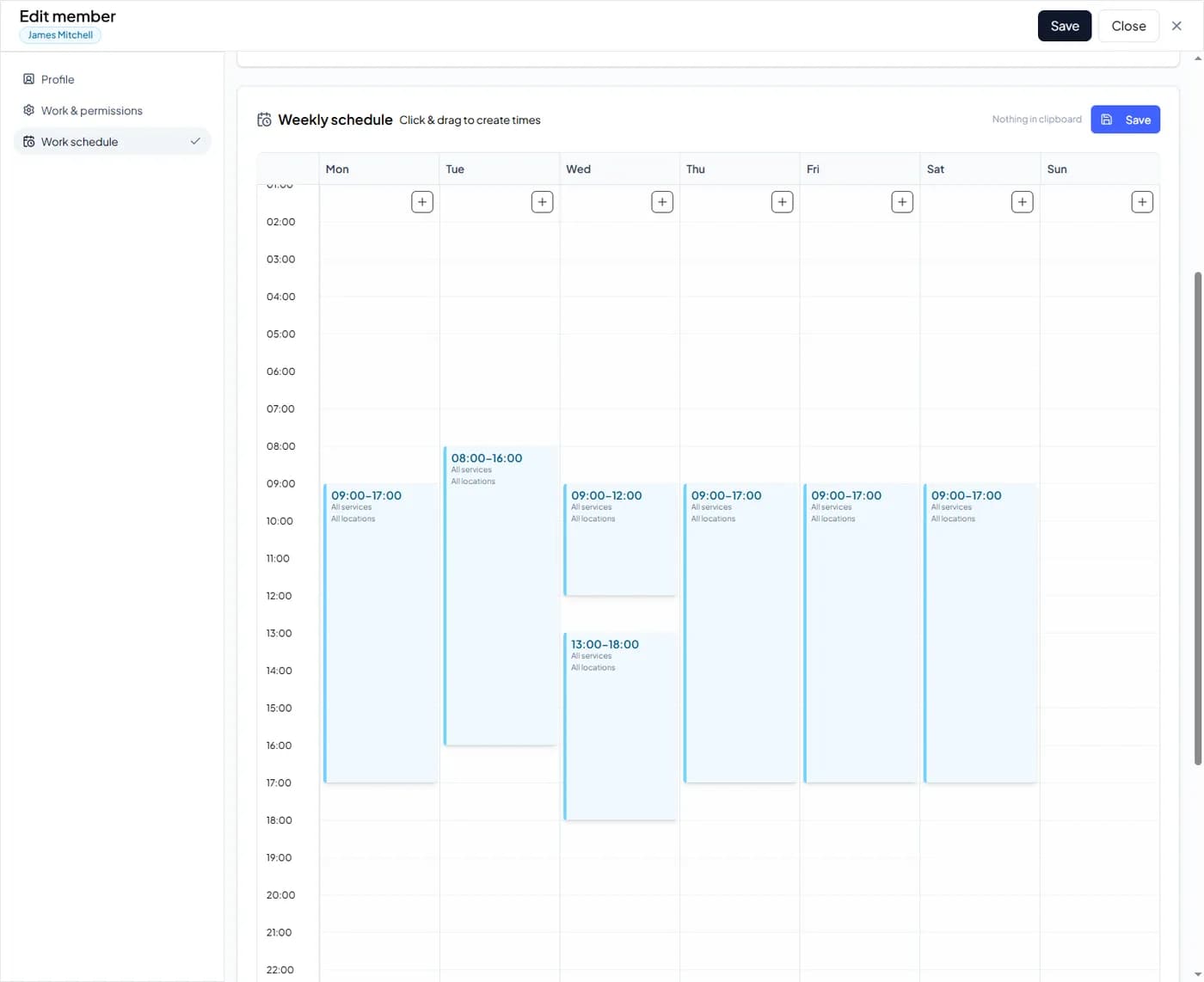
The weekly schedule is the normal working schedule that repeats every week.
This is where you set:
Working days
Working hours
Breaks (lunch, pause, etc.)
Split shifts
• Availability for bookings
Customers can only book appointments during available schedule hours.
How To Set Weekly Working Hours
Step 1 — Open Team Members
Go to Team in the left menu.
Step 2 — Open Team Member
Click on the team member you want to edit.
Step 3 — Open Work Schedule
Click Work schedule in the left side menu.
Step 4 — Add Working Hours
Click on a day and click + drag to create working hours.
Step 5 — Save Schedule
Click Save to store the weekly schedule.
How To Add Breaks During The Day
Breaks are used when staff are working but should not be bookable, for example: