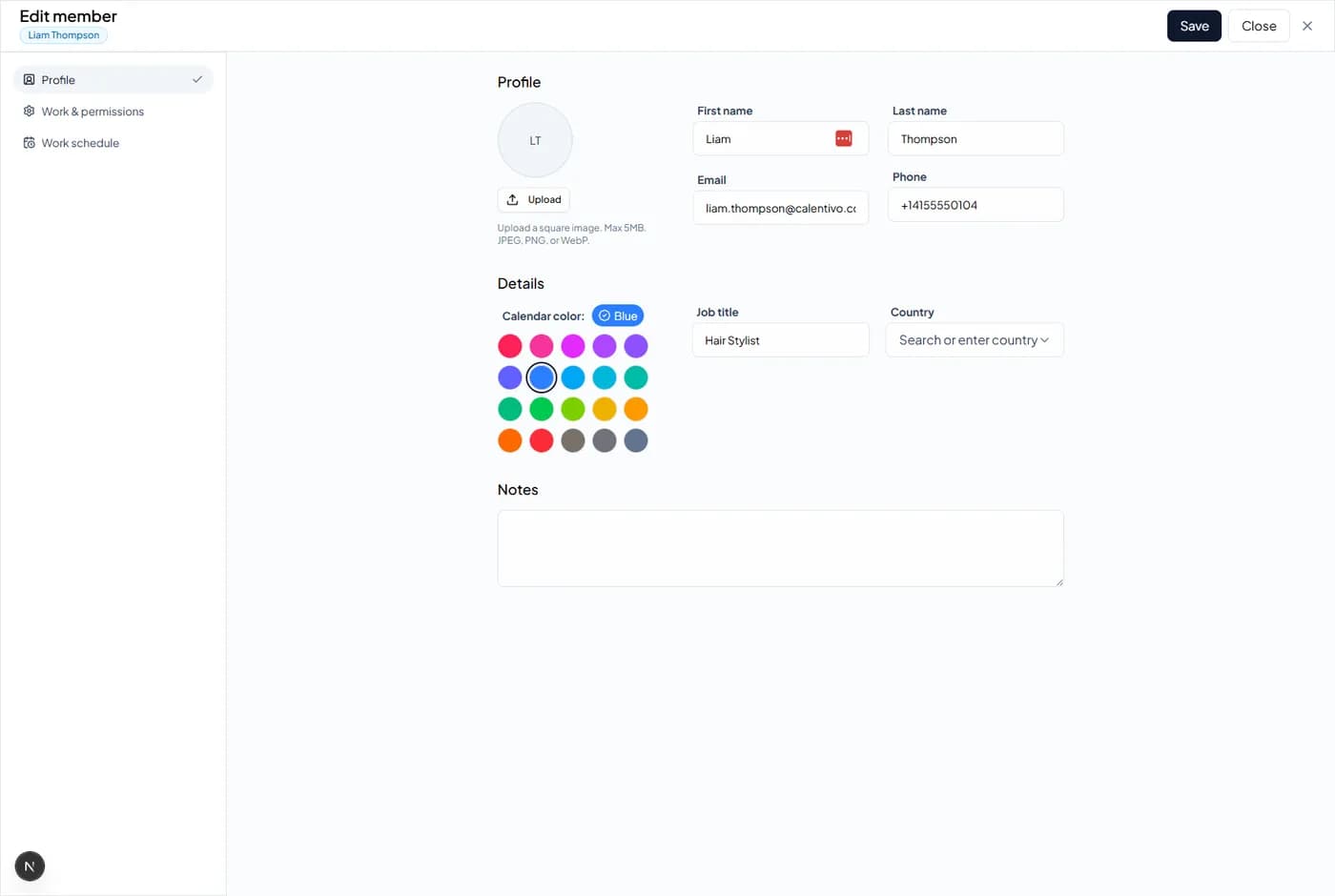
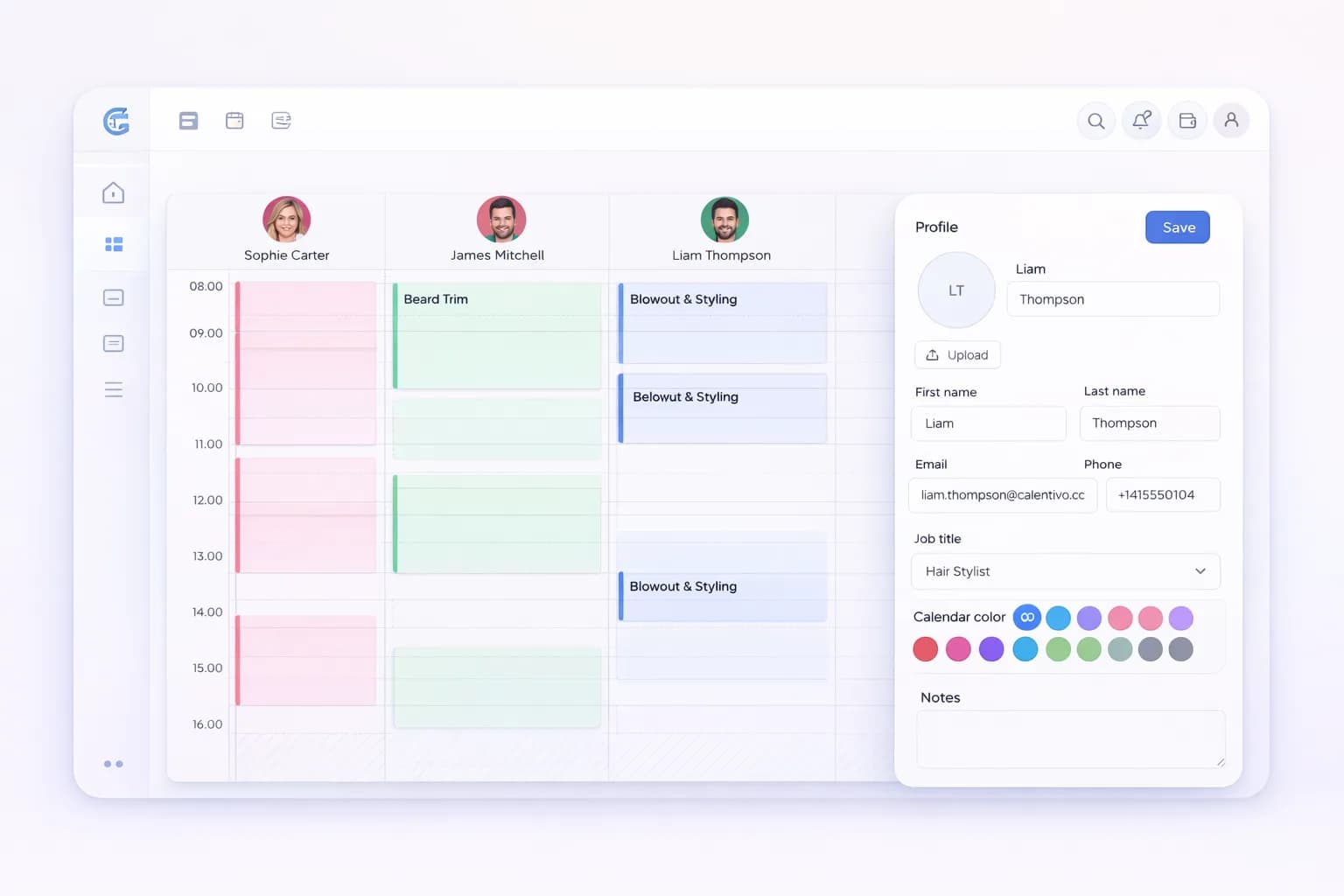

Keeping your team information up to date helps your booking calendar stay accurate and organized. In Calentivo, you can quickly edit a team member’s profile, contact details, and calendar settings.
Business owners and managers typically update team member profiles when staff details change, when adjusting booking colors, or when updating roles and schedules.
This guide shows how to open a team member profile and update their information directly from the calendar.
Step 1 — Open the Calendar
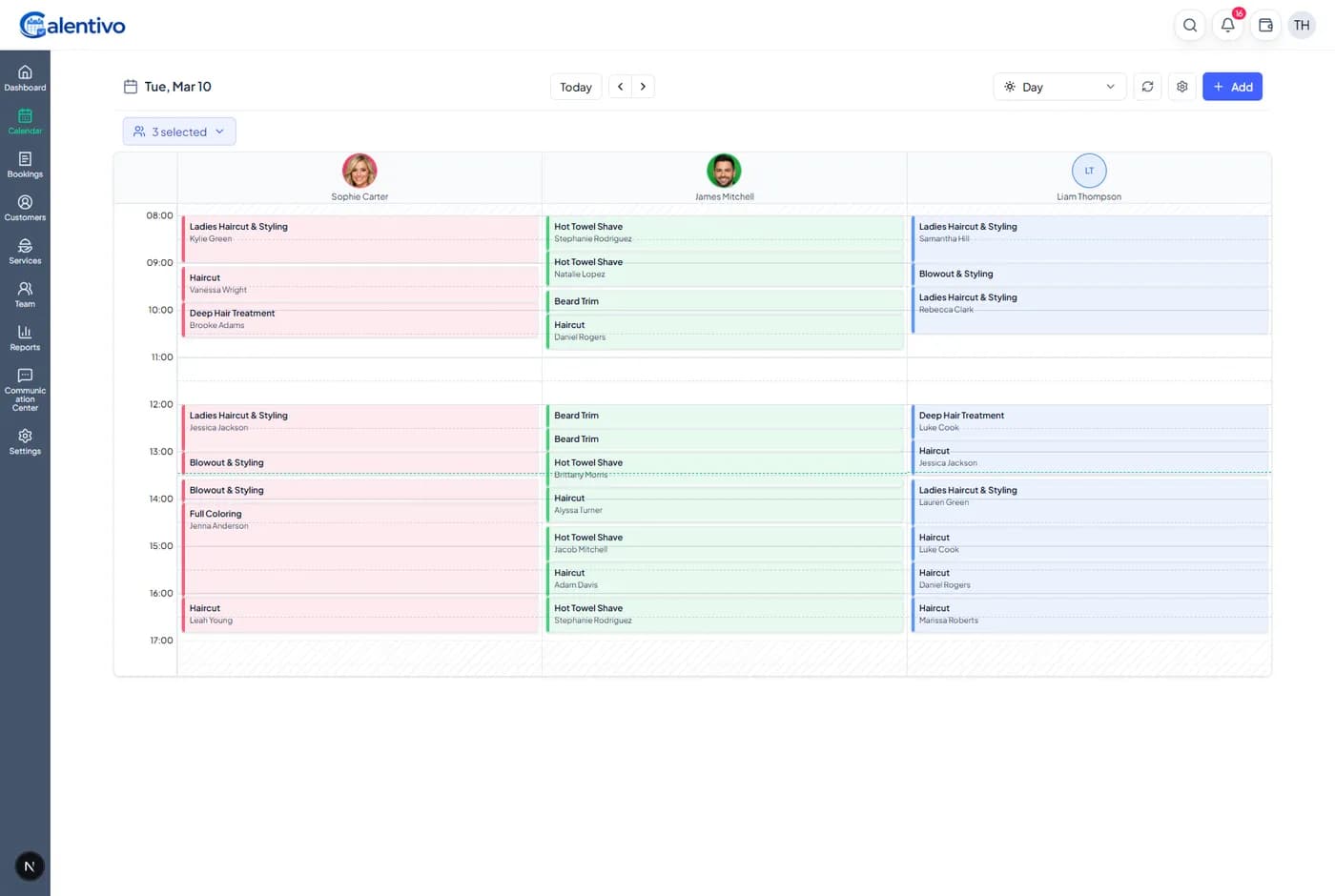
Start by navigating to the Calendar section in the main sidebar of your Calentivo dashboard.
The calendar displays bookings for each team member in separate columns. At the top of each column you will see the team member’s name and avatar.
This is where you can quickly access team member actions.
Step 2 — Open the Team Member Menu
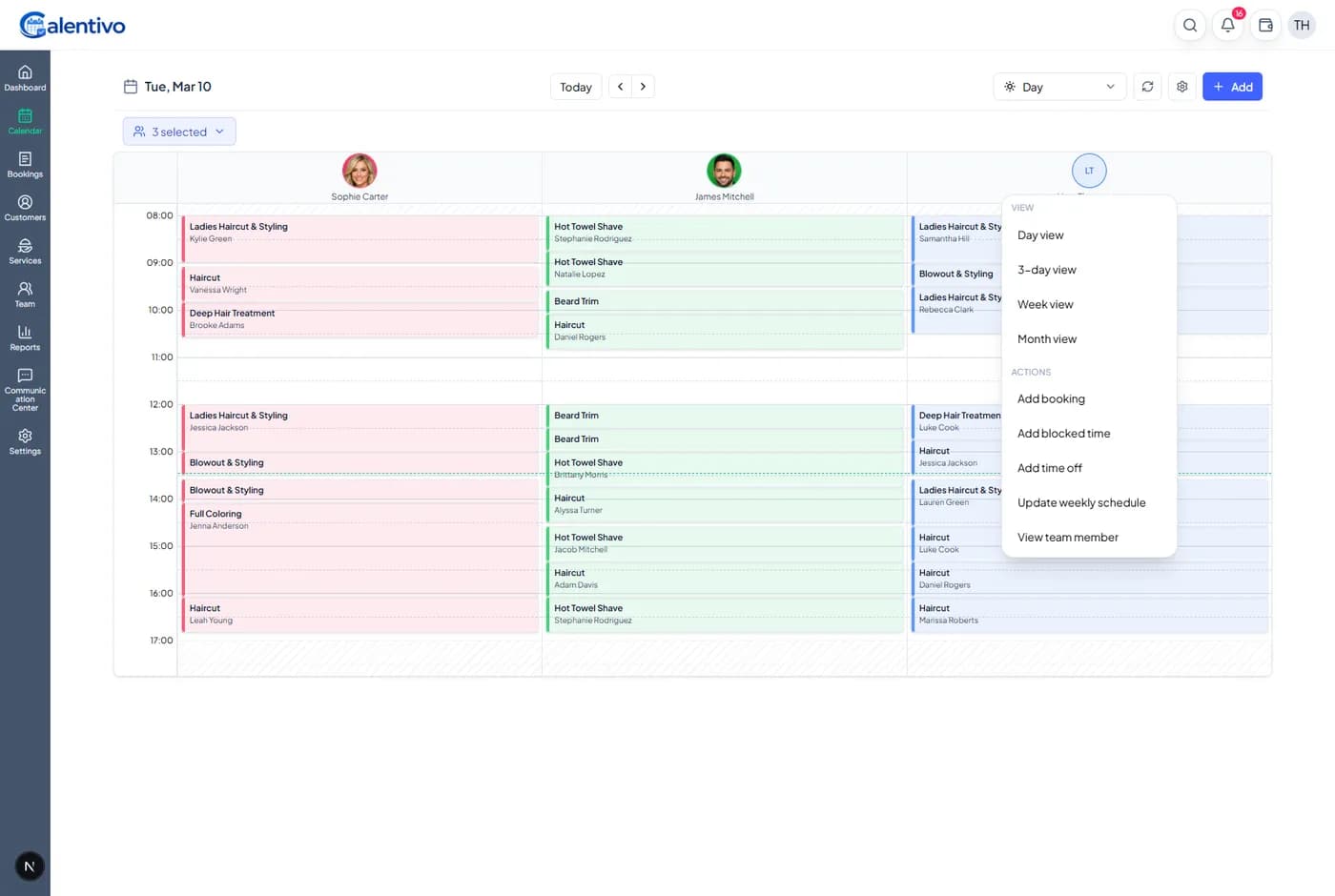
At the top of a team member’s calendar column, click the team member avatar or initials.
This opens a quick menu with several options related to that staff member.
Day view
3-day view
Week view
Month view
Add booking
Add blocked time
Add time off
Update weekly schedule